
Locum Hours Excel Template (2026)
20
Free download
Montessori attendance workbook for Irish settings, with pupil records, daily status, arrival times, dashboard summaries and GDPR guidance.
Download template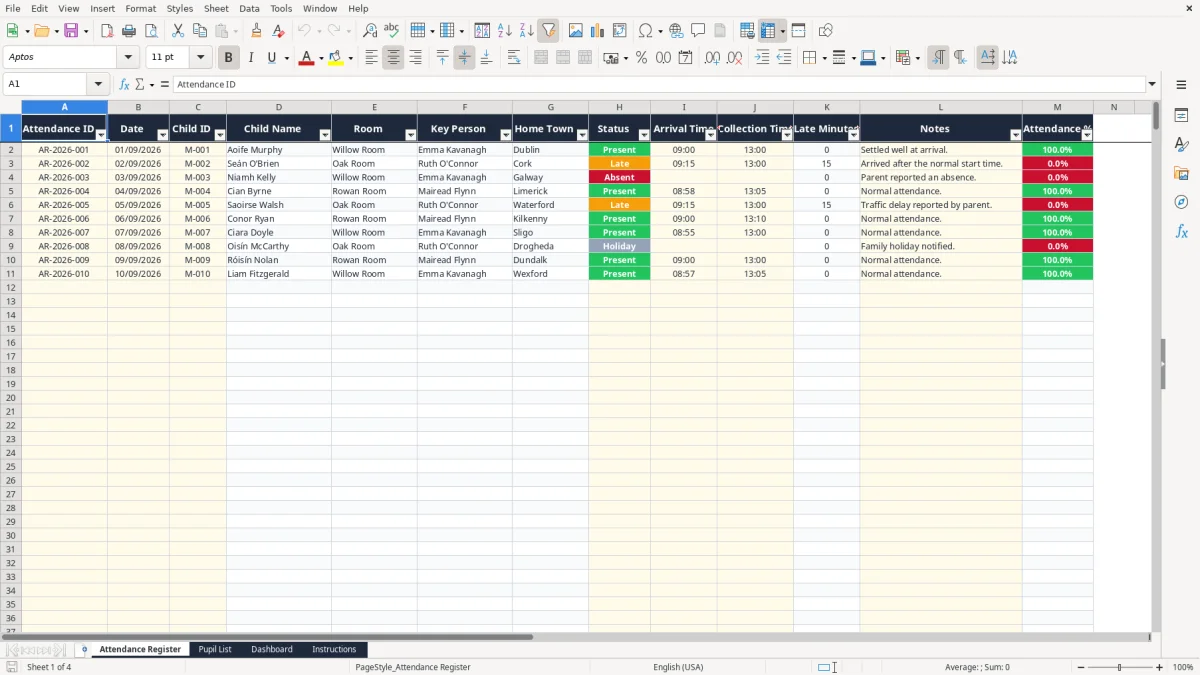
This Montessori attendance Excel spreadsheet records each child’s daily attendance, status, arrival and collection times, late minutes, and operational notes. It contains an Attendance Register for up to 999 prepared rows, a Pupil List for 100 children, a calculated Dashboard with attendance summaries and charts, and an Instructions sheet.
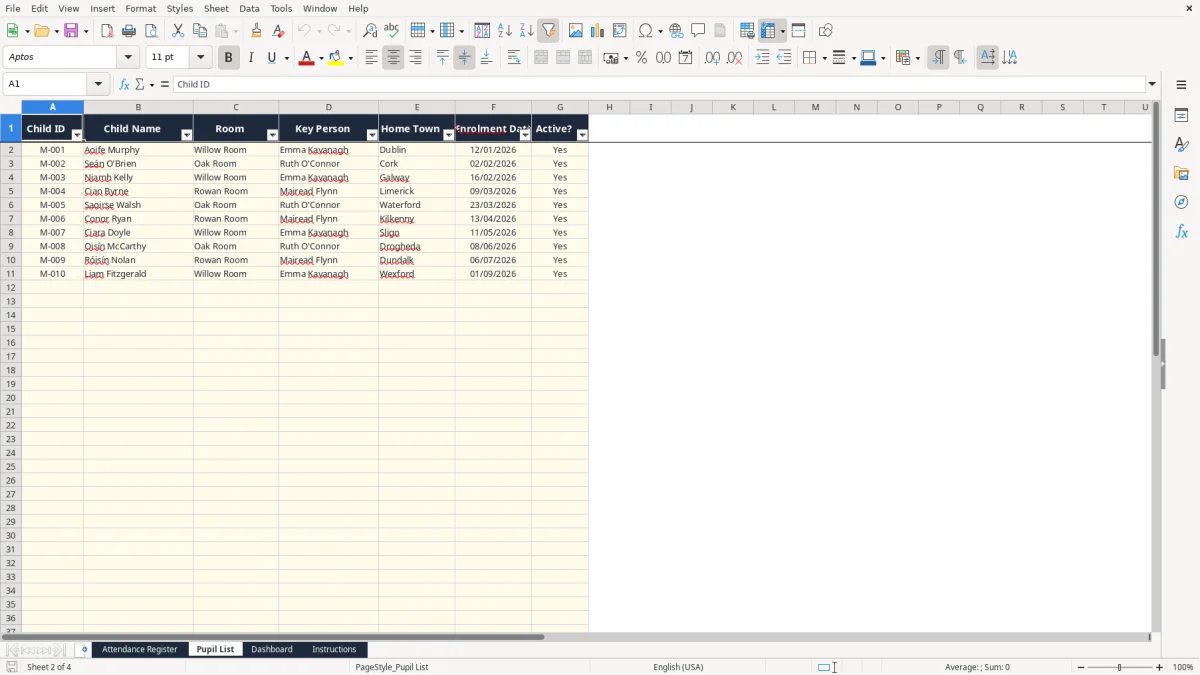
Use it in an Irish Montessori setting to keep a consistent daily record without retyping each child’s name, room, key person or home town. Image 1 shows the Attendance Register, while image 2 shows the Pupil List that feeds the calculated fields.
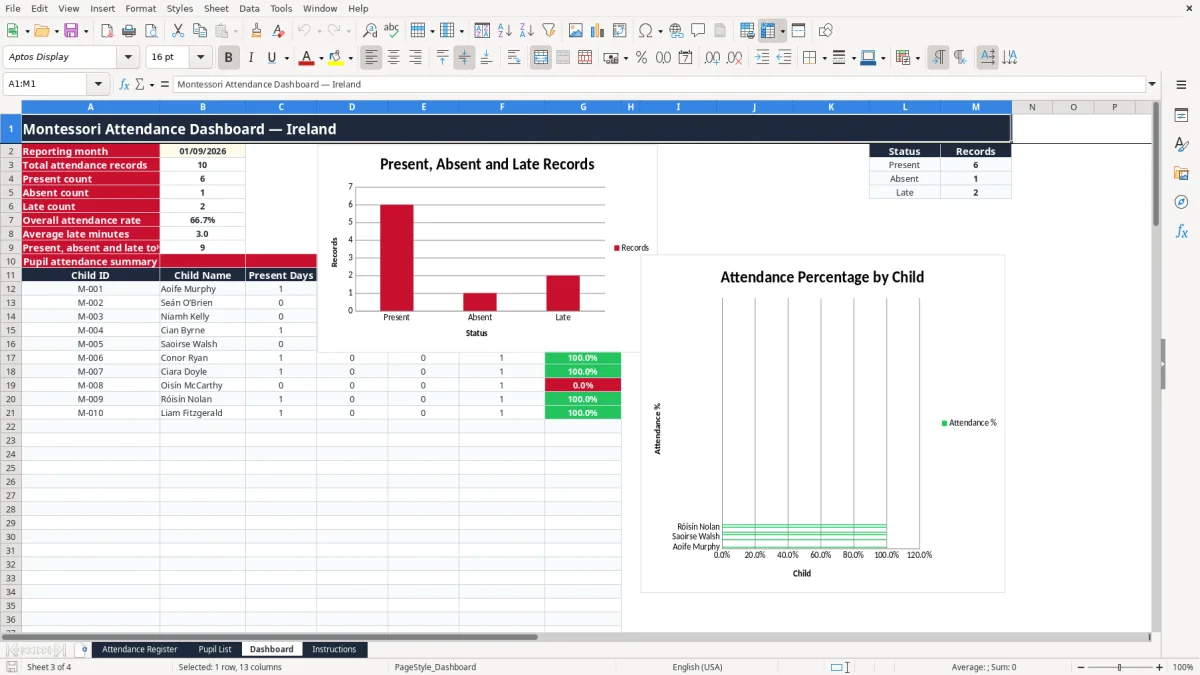
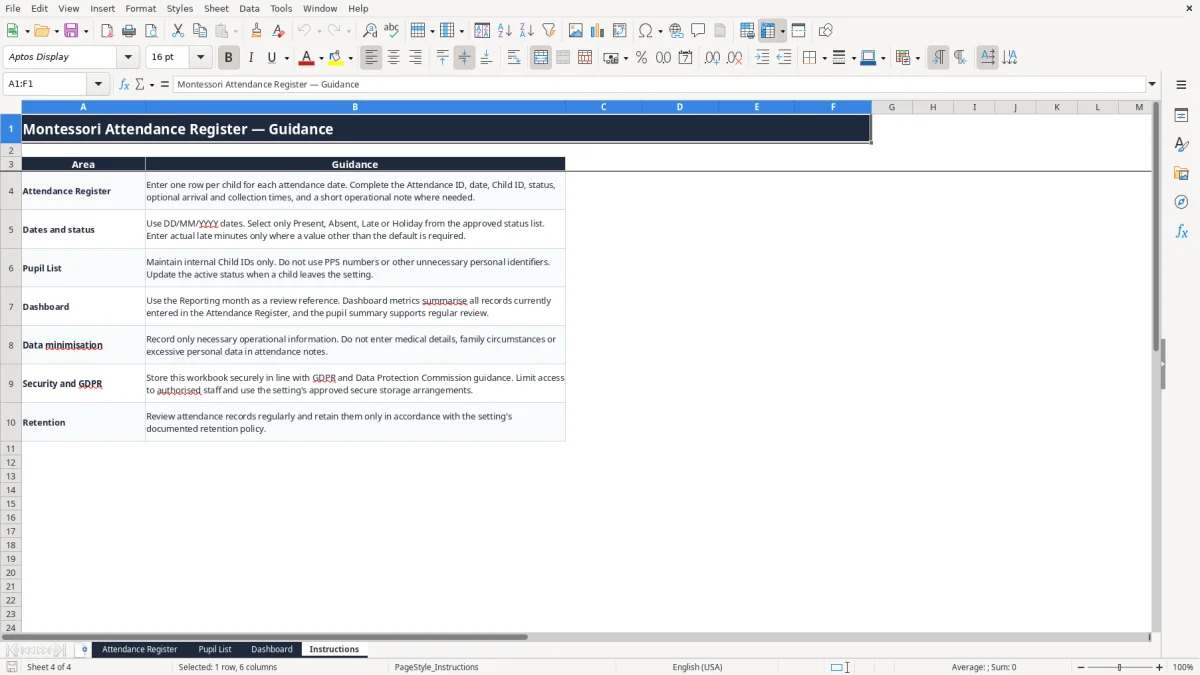
The workbook includes approved status choices for Present, Absent, Late and Holiday. The Dashboard, shown in image 3, summarises the records entered, and image 4 explains data minimisation, secure storage and retention.
A Montessori room leader, owner-manager or administrator will usually touch the register at the start and end of each session. The practical job is not just marking a child present: you may need to know who arrived at 09:00, who was collected at 13:00, which child was late, and which key person was responsible for the room.
Image 1 shows the Attendance Register’s 13 columns: Attendance ID, Date, Child ID, Child Name, Room, Key Person, Home Town, Status, Arrival Time, Collection Time, Late Minutes, Notes and Attendance %. The user enters the identifier, date, child, status, times and note. The name, room, key person, home town, late minutes and percentage are calculated or looked up.
Suppose a setting has 18 children across Willow, Oak and Rowan Rooms. On 14/09/2026, the administrator enters one row for each child. Aoife Murphy may be marked Present at 09:00 with collection at 13:00, while Seán O’Brien may be marked Late with an arrival time of 09:15.
When M-002 is selected, the workbook looks across the Pupil List and returns Seán’s name, room, key person and home town. The late formula records 15 minutes for a Late status, so the Dashboard can show the average late figure across the entered register records.
The Dashboard is useful for the setting manager’s weekly review or a month-end check. Image 3 shows the reporting month reference, overall counts and a pupil summary with Present Days, Absent Days, Late Days, Total Recorded Days and Attendance %.
A child recorded as Present on 18 days and Absent on 2 days has 90.0% attendance in the workbook’s present-days calculation. Treat that as an operational summary, not as a substitute for checking the underlying dates and notes.
Attendance information identifies children, so the setting should handle it as personal data under the GDPR and the Data Protection Act 2018. The Instructions sheet specifically says to limit access to authorised staff, use approved secure storage and avoid medical details, family circumstances or excessive information in notes.
The workbook deliberately uses an internal Child ID such as M-001 rather than a PPS number. Image 2 shows fields for Child ID, Child Name, Room, Key Person, Home Town, Enrolment Date and Active?. That is a useful structure for data minimisation, but the names and attendance records still remain personal data.
The Data Protection Commission expects a controller to have a lawful basis, appropriate security and a retention approach that matches the purpose. The workbook does not set a retention period for your Montessori setting; the Instructions sheet tells you to follow your documented retention policy. Do not leave old copies in personal email accounts or on an unprotected USB key.
For example, if 24 children generate 20 attendance rows each during a four-week month, the file contains 480 child-date records. A copy sent to six staff members can quickly create six uncontrolled versions, so my clear preference is one authorised master file in the setting’s approved secure storage, with access limited to staff who need it.
The Dashboard’s reporting month cell is a review reference, but the formulas summarise all records currently entered in Attendance Register. It does not filter the register to that month. If September and October rows remain together, the headline totals include both months, so review the dates before using a figure in a management report.
Irish early-years records may also be subject to contractual, funding or inspection requirements beyond this spreadsheet. Keep the workbook’s role clear: it is an operational register and summary tool, not a complete compliance system.
The most common failure I see is a child being selected correctly one day and typed differently the next. If someone enters M001 instead of M-001, the VLOOKUP cannot find the pupil, leaving the calculated name, room, key person and home town blank. The row still looks partly complete, which makes this error easy to miss.
A Late entry is not the same as Present in this workbook’s calculation. The Attendance % formula counts only rows with Status equal to Present, while the Dashboard has separate Present, Absent and Late counts. If a child attends for 18 days but six of those are marked Late, the child’s displayed percentage is based on 18 Present rows only if those rows exist; it is not a general measure of time spent in the setting.
Similarly, Holiday is an approved status but is not counted as Present by the formula. A fortnight of holiday entered as Holiday can therefore reduce the displayed percentage. That may be exactly what you want for an operational count, but you should not quietly interpret it as an absence rate without checking your reporting policy.
Entering 9.15 as text rather than a recognised time can stop sorting and make the register difficult to read. Use the displayed hh:mm format: 09:15 is clearer than a mixture of 9.15, 9:15am and words. The sample also shows that arrival and collection times may be blank for an absent child.
Another costly mistake is writing sensitive detail in Notes. A sentence such as a medical diagnosis or family explanation adds risk without improving the attendance record. Use a short operational note such as parent reported an absence, and keep any necessary safeguarding or health information in the setting’s approved restricted record.
The Dashboard has two charts but no automatic month filter. A manager may see 90 records and assume that means 90 September attendances when the register contains several months. Before quoting the number, filter or review the source rows manually and confirm that Attendance IDs, dates and Child IDs are complete.
The simplest routine is to update the register twice a day: once after the normal arrival period and once after collection. The office administrator can enter Present, Late or Absent while the room team confirms unusual cases. This takes less time than reconstructing 20 children’s attendance from memory at the end of the week.
Set aside 10 minutes at the end of each session. Check that every child expected that day has a row, that the date uses DD/MM/YYYY, that Late entries have a useful arrival time, and that notes contain only necessary operational information.
On Friday, review the Dashboard’s status counts, average late minutes and pupil summary. If 40 records are entered and 36 are Present, 2 Absent and 2 Late, the overall attendance rate shown by the workbook is 90.0% because it divides Present by Present plus Absent plus Late.
At month end, save an approved copy according to your retention policy and make a fresh working copy only when the previous period has been checked. Do not change formulas in columns D:G, K or M while clearing old operational rows.
This workbook has prepared rows to row 1000 in the Attendance Register and a Pupil List range through row 101, but it has no user-maintained table, automated month filter or access-control system. Move to a dedicated childcare or management system when several settings need shared live access, when audit trails are required, or when attendance, billing, permissions and parent communication must be connected.

 Excel template built and verified by Ciara Byrne, Chartered Accountant (ACA) · builds the Excel templates.