
Childcare NCS Hours Excel Template (2026)
9
Free download
Track creche bookings, NCS subsidy estimates, parent fees, payments, balances and overdue accounts across 100 prepared rows.
Download template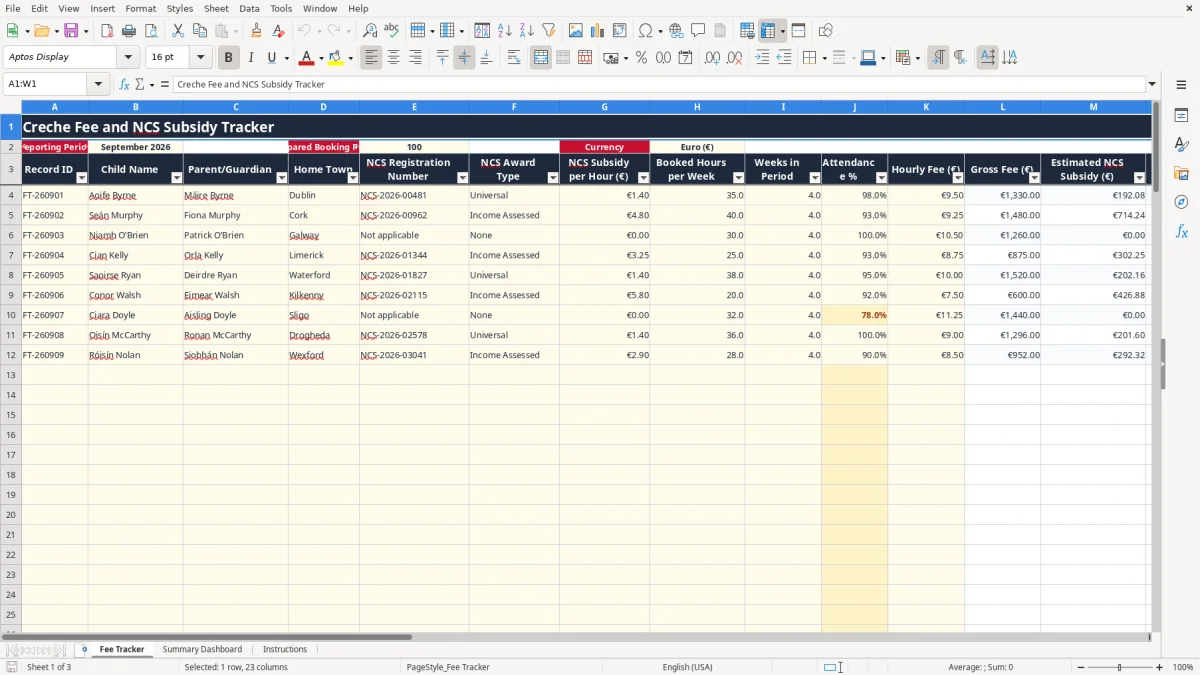
This creche fee and NCS subsidy tracker Excel spreadsheet records each child's booking, attendance, hourly fee, estimated subsidy, parent charge, payment and balance. It contains 100 prepared booking rows, automatic calculations, payment status checks and a dashboard for the reporting period.
Use the Fee Tracker for monthly childcare administration, the Summary Dashboard to review totals and accounts, and the Instructions sheet for the intended workflow. The example workbook is set to September 2026, but you can replace the reporting period and enter your own records.
A creche manager or administrator can use this workbook during the monthly billing run to connect bookings, attendance, NCS information and parent collections. It is also useful to a bookkeeper in a small childcare company who needs a clear schedule before posting receipts and outstanding balances into the main accounts system.
Image 1 shows the Fee Tracker. The visible columns run from Record ID and Child Name through Parent/Guardian, Home Town, NCS Registration Number and NCS Award Type. The money and booking fields then continue through subsidy rate, booked hours per week, weeks in period, attendance percentage, hourly fee, calculated charges, payments, dates and notes.
In the populated example, Aoife has 35 booked hours per week for 4 weeks at €9.50 per hour. The gross fee is €1,330.00, while the estimated subsidy uses the entered €1.40 rate and 98% attendance: €1.40 × 35 × 4 × 98% = €192.08. The workbook caps that estimate at the gross fee, then calculates the parent fee before adjustments.
Seán's example uses 40 hours, 4 weeks, a €9.25 hourly fee, a €4.80 entered subsidy rate and 93% attendance. The estimated subsidy is calculated as €4.80 × 40 × 4 × 93% = €714.24, subject to the workbook's gross-fee cap. These are populated sample records, not a statement of the family's entitlement or a current official NCS rate.
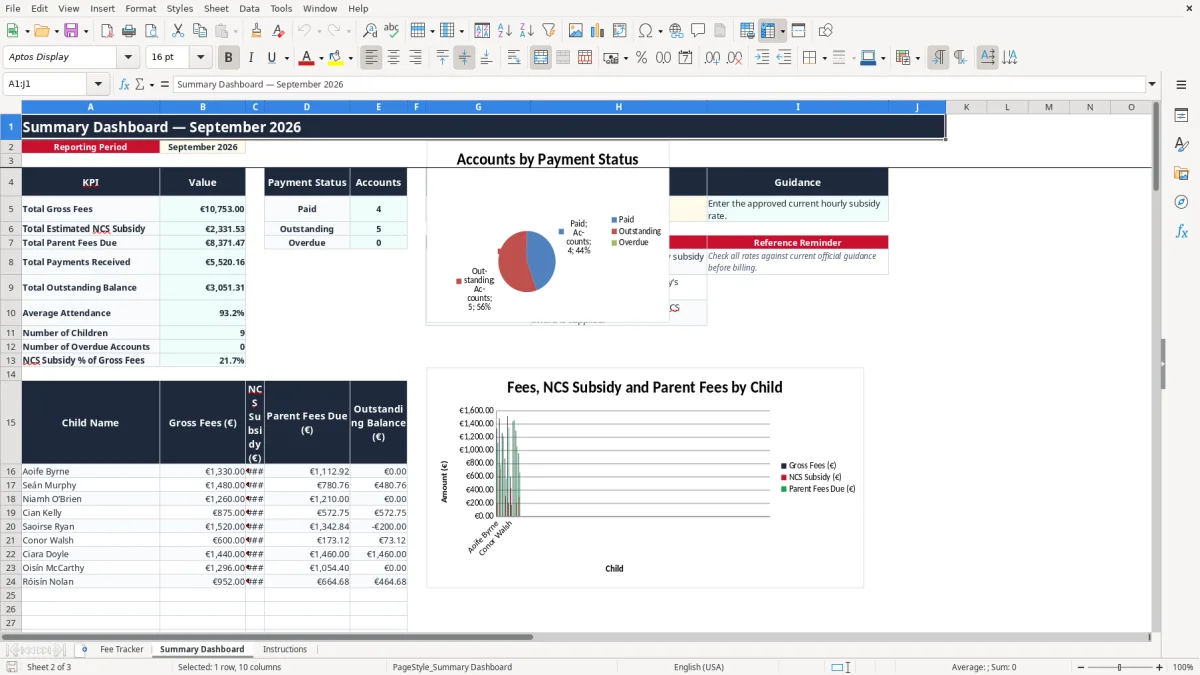
Image 2 shows the Summary Dashboard with reporting period, KPI totals, payment-status account counts, an award-type selection and child-level figures. A manager can see total gross fees, estimated subsidy, parent fees due, payments received, outstanding balance, average attendance, number of children and overdue accounts without adding figures manually.
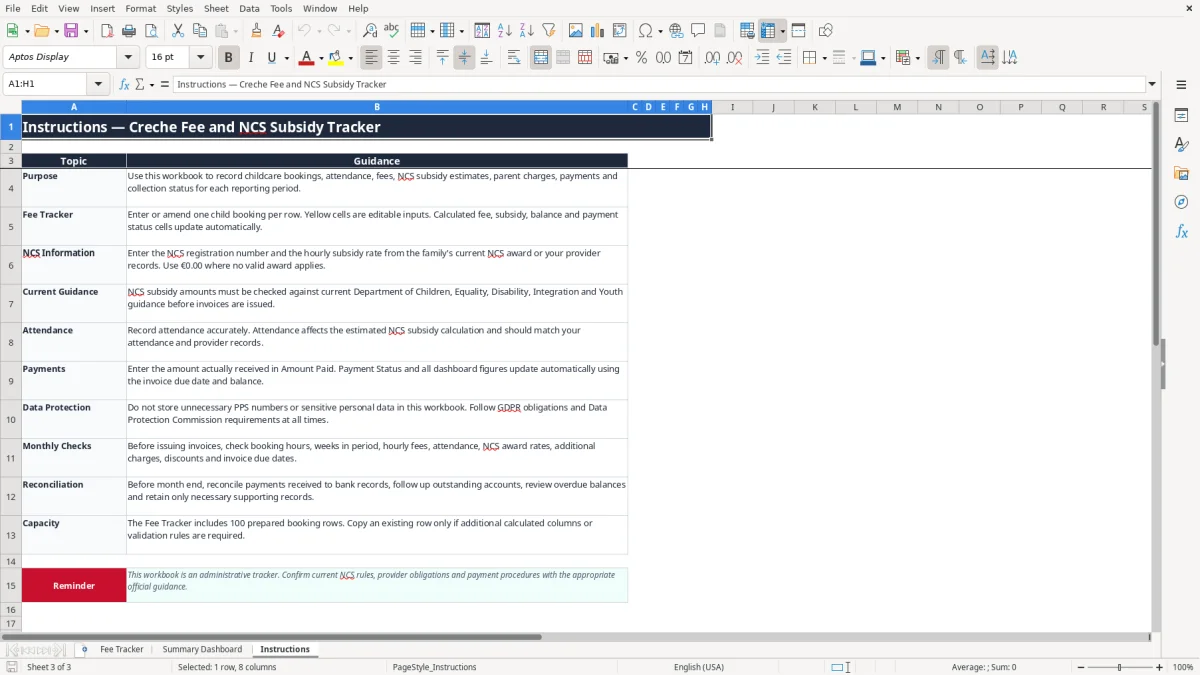
The dashboard's three charts help during a busy collection week: one compares child-level financial amounts, one groups Paid, Outstanding and Overdue accounts, and one displays outstanding balances by child. The Instructions sheet, shown as image 3, explains the intended monthly checks and reconciliation process.
The workbook is an administrative calculator, not an approval record for the National Childcare Scheme. Enter the hourly subsidy rate from the family's current award or provider records, and check current Department of Children, Equality, Disability, Integration and Youth guidance before issuing an invoice. The file deliberately does not hard-code a universal NCS rate because the selected award and official guidance must be confirmed.
On Fee Tracker, NCS Award Type is restricted to Universal, Income Assessed or None. The subsidy-rate input accepts values from €0.00 to €20.00, while attendance accepts 0 to 1, displayed as a percentage. Use €0.00 where no valid current award applies rather than leaving a previous family's rate in the row.
The estimated subsidy formula multiplies the entered subsidy per hour by booked hours, weeks in the period and attendance percentage. It then uses the lower of that result and gross fees. For example, 30 hours × 4 weeks × €5.00 × 90% gives €540.00; if gross fees are €480.00, the workbook records no more than €480.00 as the estimate.
This is a useful control, but it does not replace attendance records, award documentation or provider procedures. The Instructions sheet specifically says attendance should match provider records and that NCS amounts must be checked against current official guidance before billing.
The sheet contains child names, guardian details, home town and NCS registration numbers. Do not add a PPS number or other sensitive information simply because it might be convenient. Under the GDPR and the Data Protection Act 2018, collect only what you need, limit access and retain supporting records according to your documented retention policy.
For a creche collecting €12,000 of parent fees in a month, the dashboard can show how much has been received and what remains outstanding. It does not create an NCS claim, replace provider records, or determine entitlement. Keep the spreadsheet aligned with your approved billing and reconciliation process.
The costly mistakes in childcare billing are usually small input errors repeated across several children. A fee of €9.50 entered as €95.00, 40 hours entered instead of 4, or 0.93 entered as 93 can materially distort gross fees, subsidy estimates and parent balances. The validation rules reduce some of these risks, but they cannot decide whether the underlying booking is correct.
Suppose a child has 32 booked hours for 4 weeks at €10.00 per hour. Gross fees are €1,280.00. If a €4.80 subsidy rate is entered with 95% attendance, the estimate is €583.68; if the administrator accidentally records 50%, the estimate falls to €307.20, a difference of €276.48. That can lead to an incorrect parent charge and a difficult correction later.
Do not use attendance as a rough guess at month end. Compare it with the sign-in system or attendance record, especially where absences, reduced sessions or mid-month starts affect the calculation. The spreadsheet applies the percentage entered; it does not independently verify attendance.
Additional Charges and Discount are separate inputs. A €40 sibling discount entered as a charge, or a €15 late-pick-up charge entered as a discount, changes Amount Due in the opposite direction. For a family with a calculated parent fee of €900, that single reversal changes the invoice by €110 before any payment is considered.
Amount Paid must mean money actually received, not an invoice sent or a direct debit expected. If €500 is entered against a €900 amount due, Balance is €400 and the account remains outstanding. Entering the expected €900 instead hides the collection problem from the dashboard and can cause a duplicate follow-up or an incorrect month-end reconciliation.
Payment Status uses the balance and Due Date. A positive balance with a blank due date remains Outstanding, while a positive balance after the due date can show Overdue. Check the date format as DD/MM/YYYY and do not copy a family's NCS registration number, guardian name or subsidy rate into the next child's row.
The prepared range runs to 100 booking rows, with formulas and validation set up for the operational area. If you add rows, copy the complete structure and verify formulas and validation; a partial copy can leave a new child without the calculation or status logic.
The spreadsheet works best when one person owns the monthly update and completes it at a fixed point in the billing cycle. For a creche billing on the first working day of each month, copy the prior period's source information into a controlled working copy, change the reporting period, then update bookings, attendance and award information before invoices are issued.
Use the yellow editable cells as the working boundary and leave calculated cells alone. Data validation already limits award types, subsidy rates, hours, weeks, attendance, fees, charges, discounts and payments; keeping entries inside those ranges makes the formulas more dependable.
Save a dated copy after invoices are issued and another after payments are posted. A creche with 60 children might have 60 rows to review each month; checking 10 rows at a time after each room's attendance is entered is more reliable than trying to reconstruct the whole period on the due date.
Reconcile the Total Payments Received figure to the bank, then review Total Outstanding Balance and Number of Overdue Accounts. The Summary Dashboard provides a management view, but it is not a replacement for your accounting records or approved NCS documentation.
You have outgrown this workbook when several staff edit it at once, you need audit history for every amendment, bookings change daily across multiple rooms, or invoices and payments must integrate with a childcare management system. Until then, a controlled monthly file with restricted access and a named reviewer is simpler than building unnecessary complexity into a small creche operation.

 Excel template built and verified by Ciara Byrne, Chartered Accountant (ACA) · builds the Excel templates.