
Childcare NCS Hours Excel Template (2026)
9
Free download
Track Irish Single Person Child Carer Credit claims, claimant details, child eligibility, €1,750 credit, €4,000 band and estimated tax saving.
Download template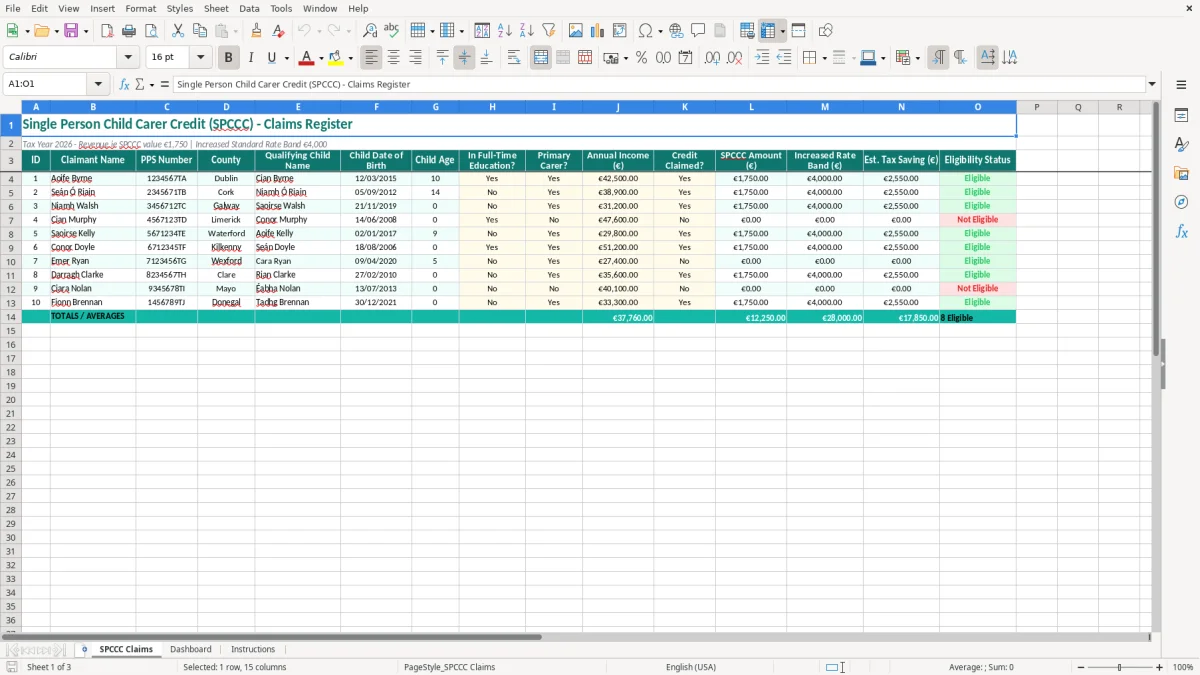
This Single Person Child Carer Credit (SPCCC) Excel template is a claims register for checking and recording qualifying claimants and children in Ireland. It includes claimant details, PPS number, county, child date of birth, education and primary-carer answers, income, the €1,750 credit, the €4,000 increased rate band and an estimated tax saving.
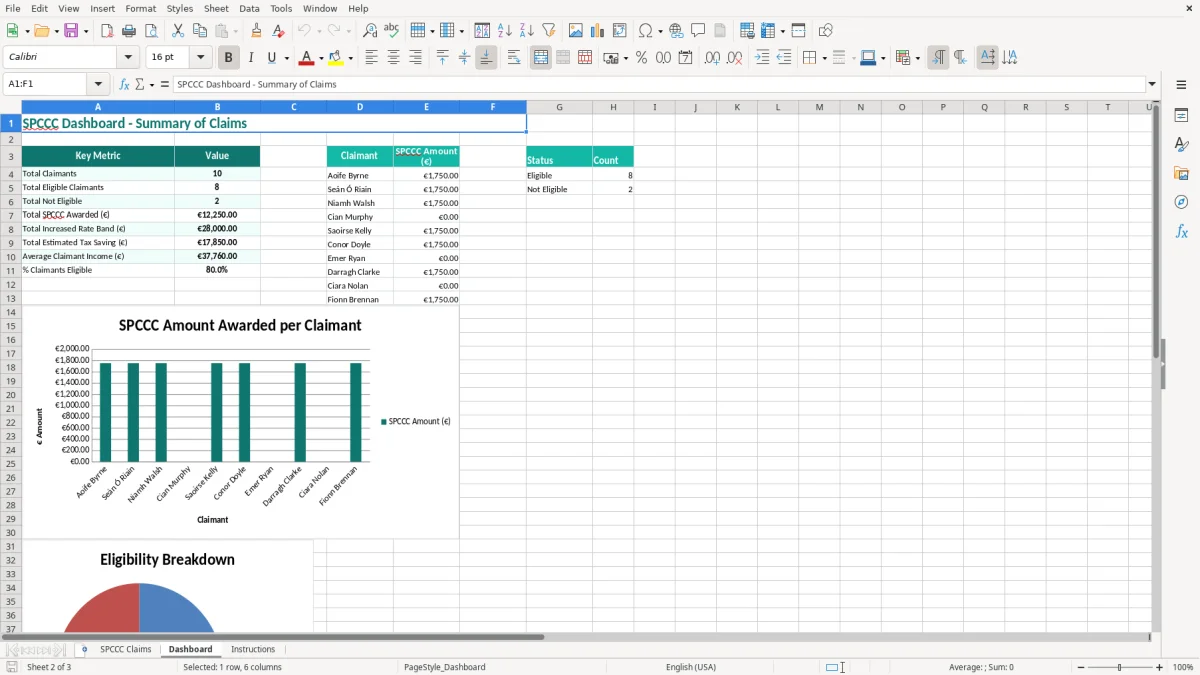
The workbook has three sheets: SPCCC Claims, Dashboard and Instructions. Image 1 shows the main register, while images 2 and 3 show the summary dashboard and the guidance sheet. It is useful for a payroll administrator, bookkeeper, tax adviser or individual keeping a structured record before checking the claim on Revenue.ie.
A single parent may open this workbook while preparing their 2026 income tax records, especially when checking whether the Single Person Child Carer Credit has been claimed. A bookkeeper in a small limited company may use it when an employee asks about tax credits, while a payroll administrator can use it as a controlled list of questions rather than trying to resolve eligibility from a payslip alone.
The register is also suitable for a tax adviser handling several clients. Instead of keeping a name in one email, a child's date of birth in a scanned form and a primary-carer answer in a notebook, the adviser can record the facts in one row and use Eligibility Status as a prompt for follow-up. The PPS Number column makes matching easier, but it also means the file should not be left in a shared folder without access controls.
Take Aoife, earning €42,500, with one child born on 12/03/2015. The sample row records Dublin, the child's date of birth, full-time education and primary-carer answers, then shows the 2026 credit value of €1,750 and the €4,000 increased rate band. That is a working-paper view of the claim, not a calculation of the household's final tax bill.
A second example is a Cork claimant earning €38,900 whose child was born on 05/09/2012. The age and education questions may require more attention than the income figure itself. If the child is no longer within the qualifying age or education conditions, the row should be investigated before the Credit Claimed? field is marked Yes.
Use it during an October or November Form 11 review, during a PAYE employee tax-credit query, or when preparing year-end client records. For a small practice with 25 claimants, one row per claimant is far easier to review than 25 separate handwritten notes, particularly when Revenue correspondence arrives months later.
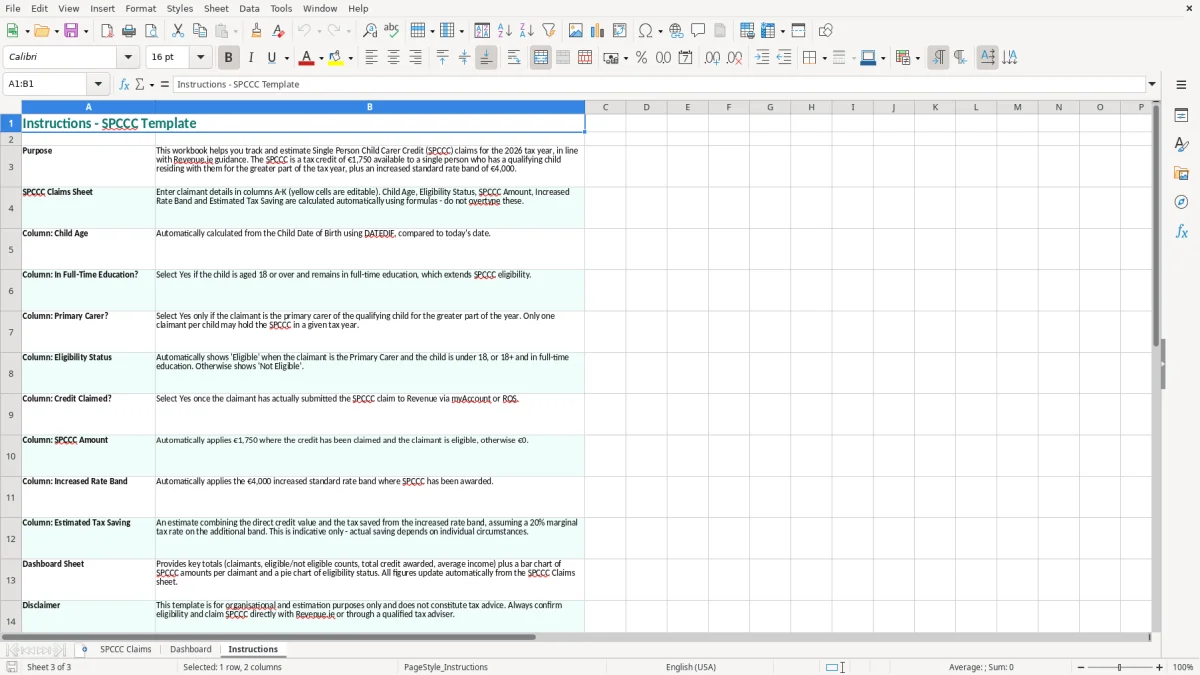
The workbook states that the 2026 Single Person Child Carer Credit is €1,750 and that the increased standard rate band is €4,000. The register repeats those values in SPCCC Amount (€) and Increased Rate Band (€), so a reviewer can see the relevant 2026 figures beside the claimant's record.
The €1,750 is a tax credit, not a €1,750 cash payment. A tax credit reduces Income Tax due. The increased rate band affects the amount of income that can be taxed at the standard rate, but it does not mean every claimant receives €4,000 in cash or that the final saving equals €4,000.
Revenue's SPCCC conditions include being a single person who is caring for a qualifying child and being the primary claimant for the credit. A qualifying child is generally under 18, or under 22 where in full-time education, subject to the detailed Revenue conditions. The workbook therefore asks for the child's date of birth, education status and primary-carer status rather than relying on the claimant's name alone.
For example, a child aged 17 on 01/01/2026 who remains in full-time education may need a different review from a child aged 23. Entering the date as 05/09/2012 allows the age field to be considered with the education answer, but the spreadsheet cannot establish attendance, custody arrangements or whether another person has already claimed the credit.
Use the file as a reconciliation and evidence checklist, then confirm the current Revenue guidance and submit through the relevant Revenue service. A Form 11 self-assessment return is normally filed through ROS by the October deadline, with the extended ROS deadline in mid-November; do not use a saved workbook date as proof that a claim was filed.
Keep tax records for 6 years where the Revenue record-keeping obligation applies. Because PPS numbers and child details are personal data, apply GDPR principles: limit access, avoid emailing unencrypted copies and delete the file when the retention reason ends. The Data Protection Commission expects sensible security for such information; this template is not a substitute for your data-protection policy.
The most expensive mistake is treating the €1,750 figure as an automatic entitlement. A claimant may select Yes because they are the only adult in the household, while the primary-carer condition or the child's education status has not been checked. If the credit reduces Income Tax by €1,750 during the year and is later removed, the underpayment can appear through reduced credits or an end-of-year adjustment.
Age is another regular problem. A child born on 21/11/2019 is six in 2026, whereas a child born on 05/09/2004 is 21. Those rows cannot be assessed from a name or school year alone. A date typed as 09/05/2004 instead of 05/09/2004 can move the apparent age by months and lead to the wrong education question being answered.
Duplicate claimants are common when a payroll office imports an employee list and later adds a Revenue query manually. Two rows for the same PPS number can make the Dashboard look like two claims and can produce an overstated estimated tax saving. Search the PPS Number column before adding a new row, and use the ID as a reference rather than as evidence of eligibility.
Do not overwrite a Yes or No answer with a dash, question mark or free-text comment. A row with blank Primary Carer? and Credit Claimed? marked Yes is not a completed record. Put the explanation in a controlled notes process outside the visible claim fields if the workbook does not provide a notes column.
A spreadsheet containing PPS numbers, children's names and dates of birth is not harmless admin. One attachment sent to the wrong recipient creates a GDPR incident, requiring investigation and potentially notification to the Data Protection Commission within 72 hours where the breach presents a risk.
I have seen offices print the full register for a meeting and leave it beside the printer. Use redacted meeting copies, password protection and a restricted folder instead. A five-minute privacy shortcut is not worth exposing 40 families' data or having to reconstruct who received the file.
A restricted folder also keeps the figures organised for the tax relief workbook, where the same sensitivity applies to pension details and claim support records.
The workbook works best when it is tied to an existing task rather than left open-ended. For a sole trader, review the file on the same day as the annual income-tax checklist. For a payroll office, add it to the first payroll review in January and again before the Form 11 or PAYE review season. A fixed calendar appointment is more reliable than waiting for a claimant to remember.
Do not turn the sheet into a free-text diary. Keep names and dates in the designated columns, use the Dashboard for the summary and keep supporting correspondence in the client's restricted file. This makes a later review of 12 claimants much quicker than interpreting 12 different comments.
For a family or a practice with 20 or 30 records, this workbook is a sensible working paper. If you have 500 employees, several advisers editing at once or automated Revenue-status updates to reconcile, move to a controlled practice-management or payroll system. Excel can show a €1,750 credit and a €4,000 band, but it cannot confirm custody, education, another claimant or Revenue acceptance without reliable source information.
Keep one master file rather than creating a new copy for every conversation. At the end of the tax-year review, lock the completed version, restrict the PPS data and retain it for the required period. That gives you a clear audit trail without allowing old drafts to compete with the current register.
The end-of-year review also leaves you with the figures needed for a contribution estimate, so the locked master file can carry the latest deductions into the next calculation.

 Excel template built and verified by Ciara Byrne, Chartered Accountant (ACA) · builds the Excel templates.