
Childcare NCS Hours Excel Template (2026)
9
Free download
Track Irish third-level fees, €7,000 course caps, disregards and 20% relief for each student in one Excel workbook.
Download template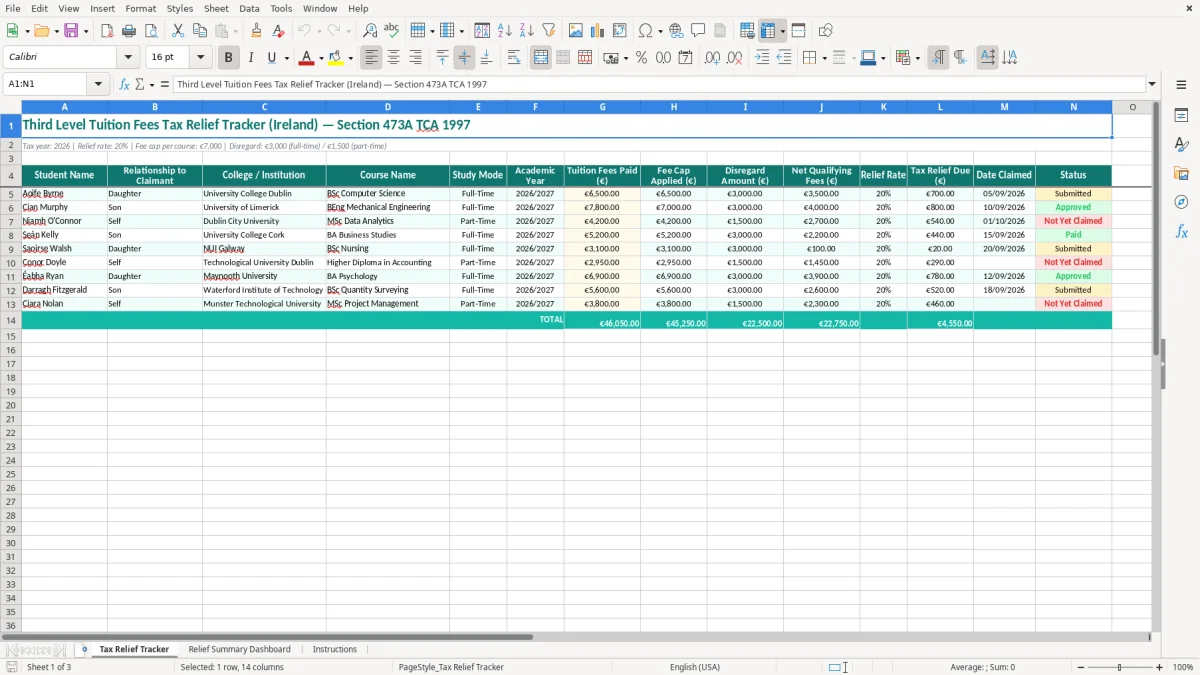
This tuition fees tax relief tracker records Irish third-level fees paid, the student and course details, the applicable €7,000 fee cap, the full-time or part-time disregard, and the 20% relief due. It includes a Tax Relief Tracker, a Relief Summary Dashboard and an Instructions sheet for claims under Section 473A TCA 1997.
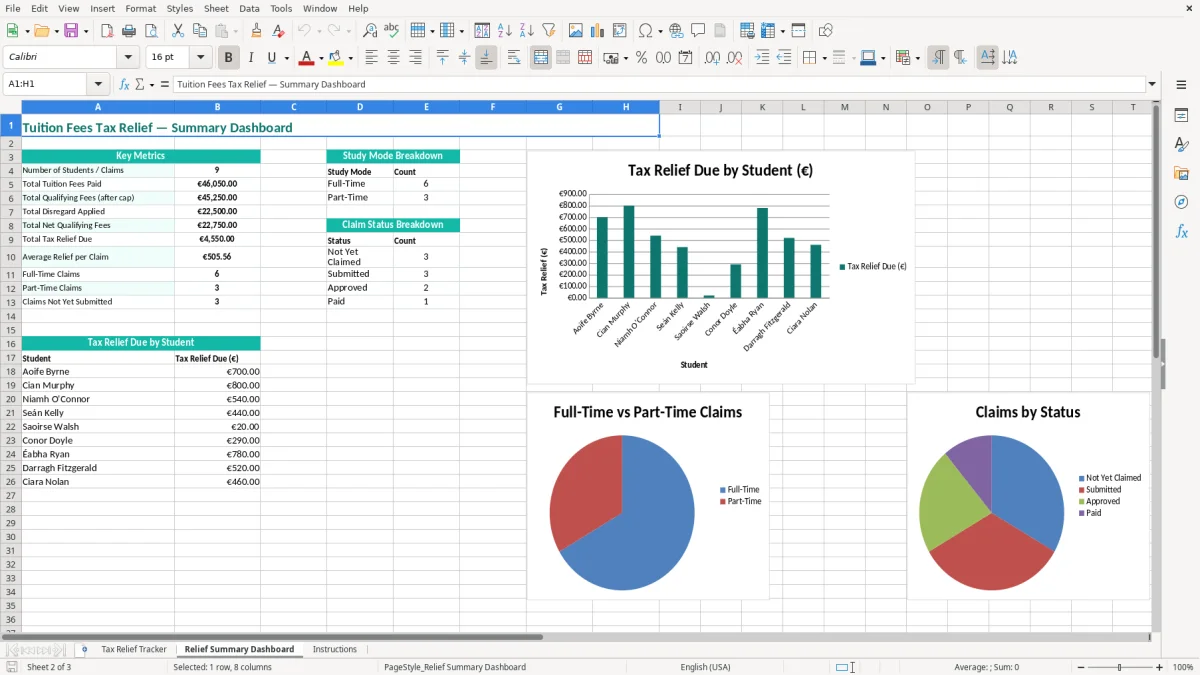
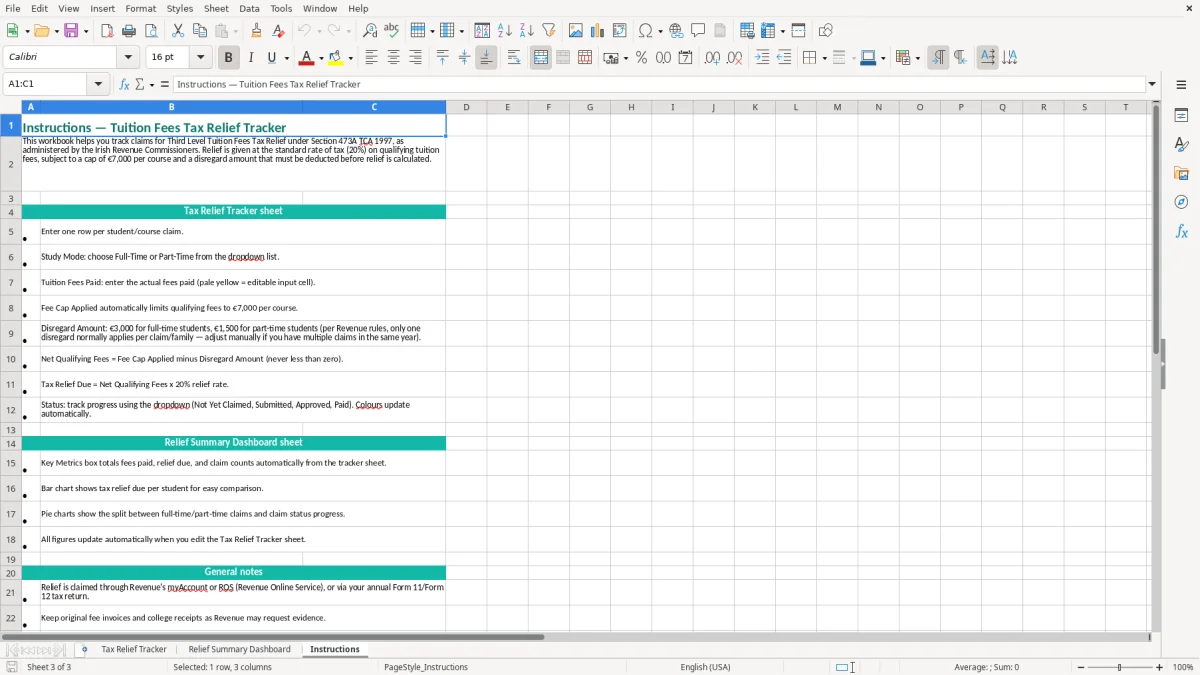
Use it when you are collecting receipts for your own course or fees paid for a child, spouse or civil partner. The first sheet (image 1) is the working register, the dashboard (image 2) summarises the entries, and the Instructions sheet (image 3) sets out the figures shown in the workbook.
This workbook suits a PAYE employee paying college fees for a daughter, a parent paying a son's engineering course, or a student paying qualifying fees personally. It also works for a sole trader or company director who is organising personal tax records alongside bookkeeping, although the relief is a personal income tax matter rather than a business expense.
The Tax Relief Tracker (image 1) gives you one row per student and course. The visible columns run from Student Name, Relationship to Claimant and College / Institution through Course Name, Study Mode, Academic Year and Tuition Fees Paid (€). That layout matters when a household has two students at different colleges and the receipts otherwise end up in one envelope.
Take a family where Aoife's full-time course fees are €6,500 and Cian's full-time fees are €7,800. The first course has €6,500 available before the disregard; the second is limited to the €7,000 course cap. Recording them separately prevents you from accidentally treating the household's combined €14,300 as one single limit.
For a full-time course, the workbook displays a €3,000 disregard. On Aoife's €6,500, that leaves €3,500 of net qualifying fees and an indicative relief of €700 at 20%. On Cian's €7,800, the €7,000 cap leaves €4,000 after the disregard, giving €800. The dashboard is helpful when you need the combined picture without losing the student-level detail.
Most people should enter the fee when it is paid and attach the receipt immediately, rather than trying to rebuild the record in October or November. A bookkeeper helping a household can update the sheet after each instalment, then mark the claim date and status once the taxpayer submits through Revenue's online service.
Image 2 shows the Relief Summary Dashboard, while image 3 shows the Instructions sheet. Use the summary for totals, but use image 1 and the original receipts as the evidence behind each figure.
Irish third-level fee relief is provided under Section 473A TCA 1997. For 2026, the workbook presents a 20% relief rate, a maximum qualifying fee of €7,000 per student and course, and a disregard of €3,000 for full-time study or €1,500 for part-time study.
The practical calculation is: eligible fees, limited to €7,000, less the relevant disregard, multiplied by 20%. For example, €6,000 of eligible full-time fees less €3,000 leaves €3,000, producing €600 relief. If eligible fees are €9,000, the €7,000 cap applies first; €7,000 less €3,000 leaves €4,000 and relief of €800.
The claim relates to qualifying tuition fees for an approved third-level course. A registration charge is not automatically the same as qualifying tuition, so keep the college statement showing what the payment covers. Do not claim the part of a fee paid by a grant, scholarship or other assistance, because the tracker should reflect the amount you actually paid and can support.
Relief is not a cash reimbursement of the whole fee. It reduces income tax at 20%, and the value cannot exceed the income tax available to absorb it. A €4,000 net qualifying amount therefore indicates €800, not €4,000 back from Revenue.
A PAYE taxpayer normally deals with the claim through Revenue's online services, while a self-assessed taxpayer includes the relevant relief in the Form 11 process through ROS. The Form 11 deadline is in mid-November on ROS, so a self-employed claimant should not leave the receipts and course details until the last week.
Revenue record-keeping rules generally require tax records to be retained for six years. Keep the college invoice, proof of payment, evidence of the course and any grant information with the workbook. The spreadsheet is a calculation and control record; it is not a substitute for the underlying documents.
The most expensive spreadsheet error is treating the €7,000 cap as the relief amount or forgetting that the disregard comes off after the cap. A claimant with €8,400 of full-time fees might write €8,400 into a relief cell and expect €1,680. The 2026 figures give a different result: cap the fees at €7,000, deduct €3,000, then apply 20%, producing €800.
The reverse mistake is also common. Someone enters €3,000 in the Disregard Amount column for a part-time course, even though the workbook displays €1,500 for part-time study. On €5,000 of part-time fees, the correct indicative amount is (€5,000 - €1,500) × 20% = €700; using the full-time figure would understate it by €300.
Families often pay an instalment in September and another in January, then record the academic-year total from memory. If the college receipt says €2,750 but the tracker says €3,250, the difference can lead to an unsupported claim and a long search through bank statements. Enter payments from the statement, keep the receipt reference with the file, and do not include a grant-funded amount.
Another failure is combining two students in one row. If a daughter has €6,500 of fees and a son has €7,800, one household line hides which course reached the €7,000 cap. It also makes the Relief Summary Dashboard look tidy while the underlying evidence is unusable.
Submitted and Approved are not interchangeable. Marking a claim Approved before Revenue has confirmed it can cause a household to rely on €800 that has not yet been granted. Put the actual claim date in Date Claimed and leave the status at Submitted until you have the confirmation or updated tax credit information.
Finally, a 20% calculation is an estimate of relief, not proof that the full amount will be received. If the claimant has insufficient income tax after other credits and reliefs, the usable value may be lower. Keep the workbook's figure as the claim calculation and reconcile it to the Revenue outcome.
The workbook's figure can then be matched against a contribution estimate so the final Revenue outcome is clear.
The easiest routine is to update the tracker on the day a fee instalment is paid. Save the college invoice and bank confirmation using the same student and academic-year wording as the spreadsheet row. A family with two courses and four instalments can then finish the year with four short updates instead of reconstructing eight months of payments before the Form 11 deadline.
Set aside 15 minutes after each payment and 30 minutes at the end of the academic year. Compare the total on the Tax Relief Tracker with the college account statement, then check that each full-time or part-time entry has the correct disregard before you look at the dashboard.
When the claim is submitted, enter the date and change the status to Submitted. After Revenue confirms the result, update it to Approved and save a read-only copy with the supporting records. Do not overwrite last year's completed file; create a new copy for the next tax year so the academic-year history remains intact.
This spreadsheet is suitable for a small number of students and courses. Move to a document-managed tax system when you are handling dozens of students, several claimants or frequent receipt uploads, because manual attachment tracking becomes a bigger risk than the fee calculation itself.

 Excel template built and verified by Ciara Byrne, Chartered Accountant (ACA) · builds the Excel templates.