
Childcare NCS Hours Excel Template (2026)
9
Free download
Track remote working relief claims, employee details, PPS numbers, remote days and claim values in one Irish spreadsheet.
Download template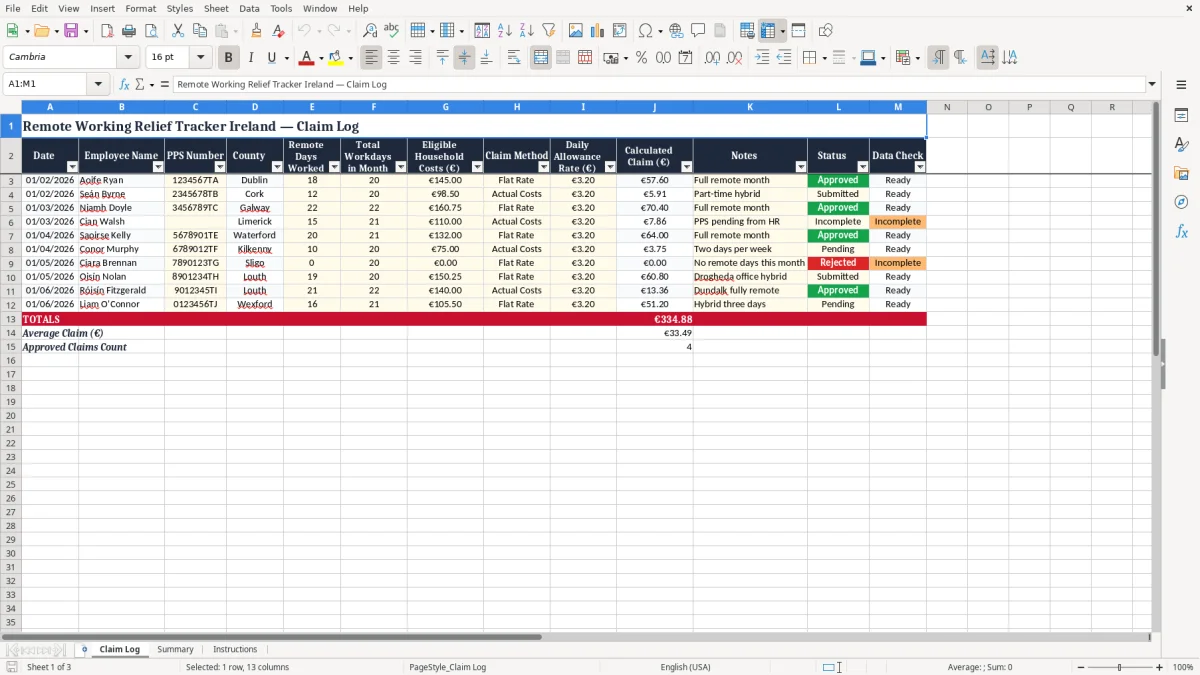
This Remote Working Relief Excel template helps you track employee claims for Ireland’s work-from-home tax relief in one place. It includes a Claim Log, a Summary sheet and Instructions so you can record PPS numbers, remote days, household costs and claim status without losing control.
Use it if you are a payroll clerk, office manager, sole trader, or employee gathering figures for a claim. The layout is built for the sort of records Revenue expects: dates, names, counties, claim method, daily allowance rate and a basic check on whether the entry is complete.
The template also gives you a quick view of how much has been claimed, what is still pending, and where you need missing details such as a PPS number or status update. That saves time when you are preparing a monthly file, a year-end review or an internal payroll check.
This spreadsheet is built for the people who actually handle remote working relief claims in Ireland: an employee checking their own records, a payroll administrator, or an office manager pulling a file together for April payroll. The Claim Log sheet is where the row-by-row detail sits, so you can see who worked remotely, in what county, and whether the claim is complete.
Image 1 shows the Claim Log with columns for Date, Employee Name, PPS number, County, Remote Days Worked, Total Workdays in Month, Eligible Household Costs (€), Claim Method, Daily Allowance Rate (€), Calculated Claim (€), Notes, Status and Data Check. That is enough for a small firm with 4 staff in hybrid patterns, or a household where two employees both need their own claim records.
A payroll clerk might update it after each monthly run, while a sole trader with one employee may only need it at quarter-end. A 20-person office could use it every pay period; if 6 staff each submit 8 remote days at €3.20, that is 48 entries to keep tidy in one month.
The point is not fancy reporting. It is to keep the claim evidence in a format that is easy to check, easy to sort, and easy to hand over when someone asks why a claim was approved, submitted or left incomplete.
That same need for a clean, checkable record carries into contribution estimates, where the figures also have to be easy to sort, verify and hand over when a claim is reviewed.
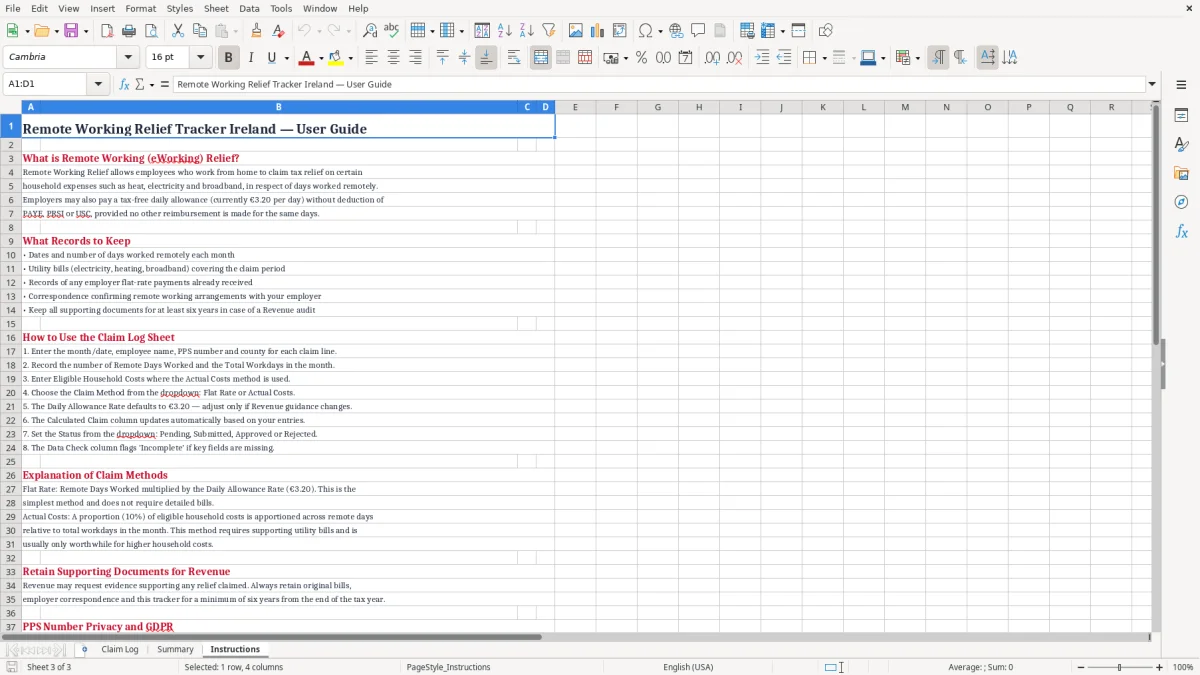
For tax records in Ireland, the practical rule is simple: keep supporting documents for 6 years. That matters here because remote working relief claims should not live in a stray email trail if you want to prove the figures later.
The template is designed around a basic Revenue-style record: dates, identity details, the claim method and the amounts used. If an employee claims for 10 remote days at the sample rate of €3.20, the working total is €32.00 before you compare it with the underlying household cost basis.
Remote working relief is not the same as VAT, but the discipline is similar: you need a clean record, not a rough estimate scribbled on a payslip. If one person submits 18 days in February and another submits 12, the workbook lets you see the split without calculating it again from scratch.
If you run PAYE, PRSI and USC through payroll already, this sheet works best as a supporting schedule rather than a replacement system. My view is to keep the spreadsheet for evidence and review, then let payroll software handle the live deductions and submissions.
The biggest problem is not the maths, it is the gaps. A row with no PPS number, no status, or no clear claim method becomes awkward the minute someone asks whether it was reviewed, approved or paid.
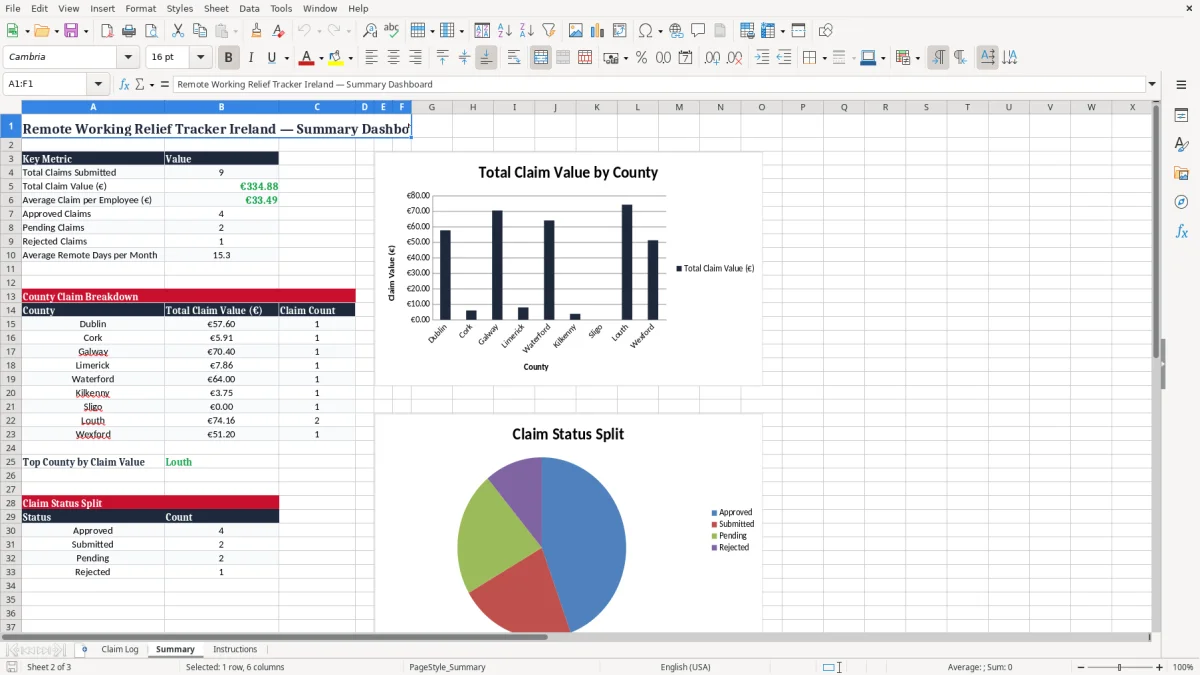
Image 2, the Summary sheet, is there to stop that mess spreading. If 3 claims are marked incomplete and each one takes 10 minutes to chase, you have already lost half an hour before you even start checking the euro amounts.
A missing PPS number is not a small issue if you are reconciling a year’s claims. You may have 40 or 50 rows on file, and even 5 incomplete entries can turn a quick review into a long back-and-forth with HR or the employee.
Another common failure is mixing approved, submitted and pending claims in the same notes field with no proper status. That is how a claim gets missed in the final batch and ends up being queried months later, when nobody remembers whether it was €24.00 or €124.00.
A clean spreadsheet is cheaper than fixing a claim trail after the fact. If you keep the structure consistent from the first row, you avoid the kind of tidy-up that costs an hour on Friday evening and another hour when the next month closes.
A consistent structure also makes day-rate tracking easier to reconcile at month-end, because each allowance can be checked against the same clean row layout instead of scattered notes.
This template works best when you hook it onto something you already do, such as the monthly payroll run or the end-of-month reconciliations. If you leave it as a one-off file, it will drift after two weeks.
If you have more than one person entering claims, use one person to review the workbook and one person to submit it. Once you are managing a large workforce, or the file starts carrying dozens of rows a month, it is usually time to move the live process into payroll or HR software and keep the spreadsheet as a control sheet only.

 Excel template built and verified by Ciara Byrne, Chartered Accountant (ACA) · builds the Excel templates.