
Junior Cycle Assessment Excel Template (2026)
13
Free download
Plan up to 100 Leaving Certificate study sessions, track subjects, topics, completion and hours with an Irish Excel timetable and dashboard.
Download template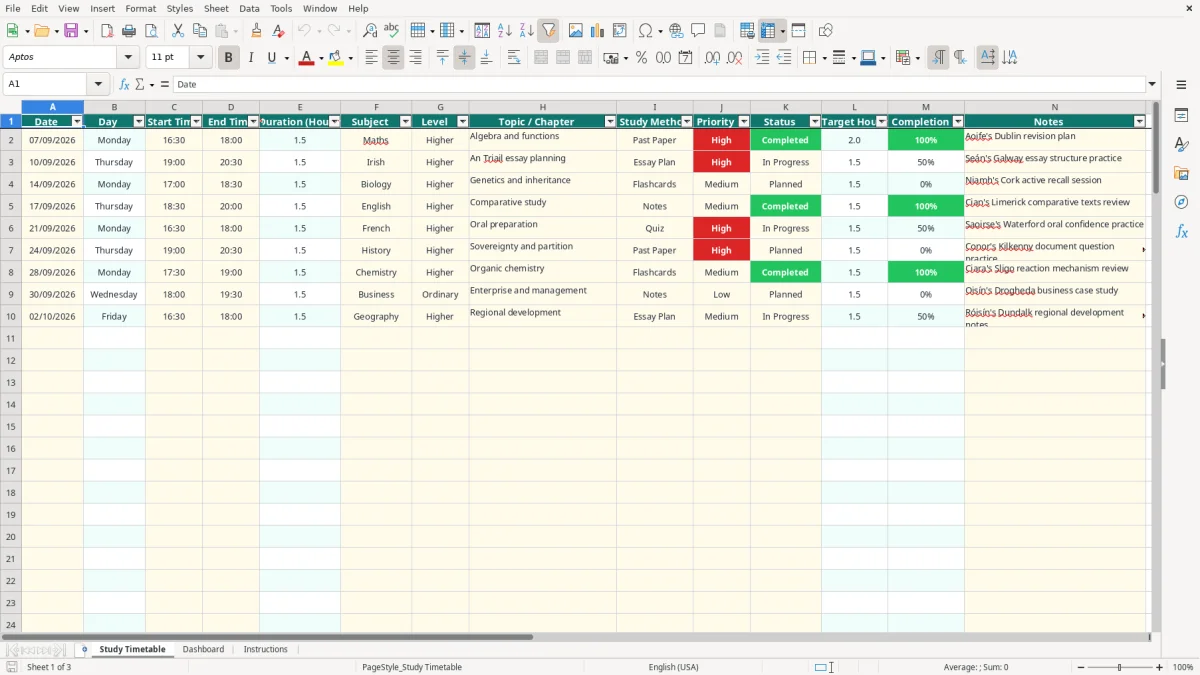
This Leaving Certificate study timetable Excel spreadsheet is used to plan, schedule and review revision sessions. It contains a 100-session timetable with dates, times, subjects, topics, study methods, priorities, statuses, target hours and notes, plus a Dashboard that summarises progress.
Enter your own revision plan in the pale yellow cells on the Study Timetable sheet. The workbook calculates session duration and completion, while the Dashboard uses the timetable data to show total hours, completed sessions, subject progress and status totals.
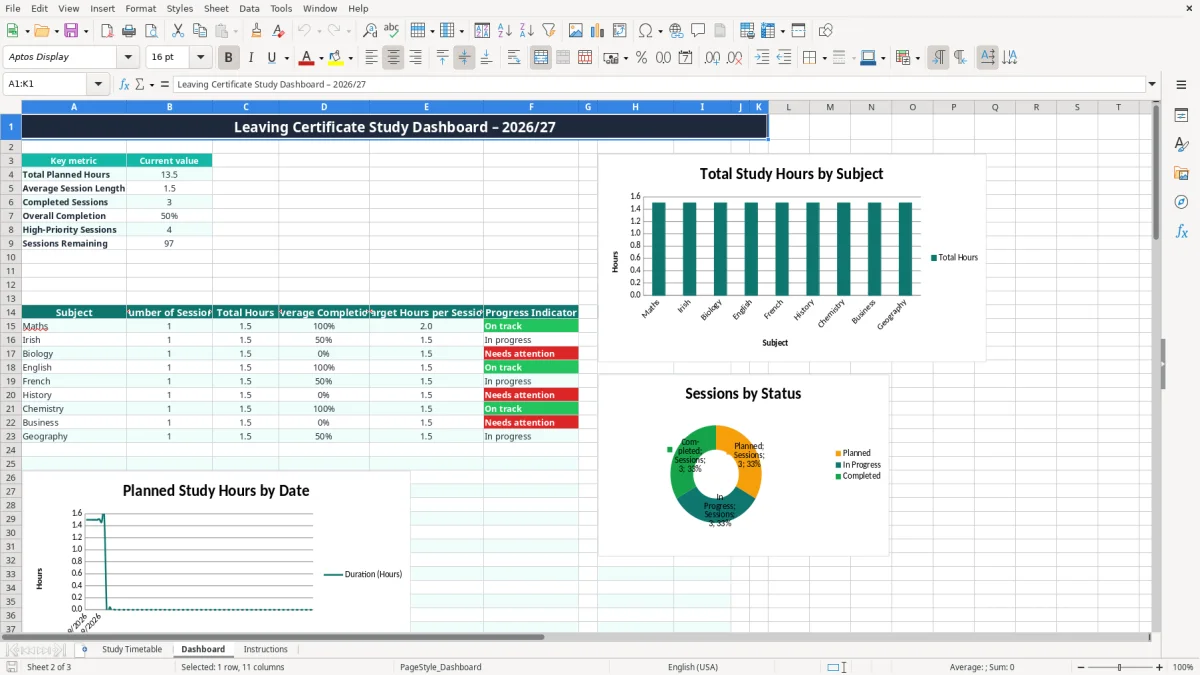
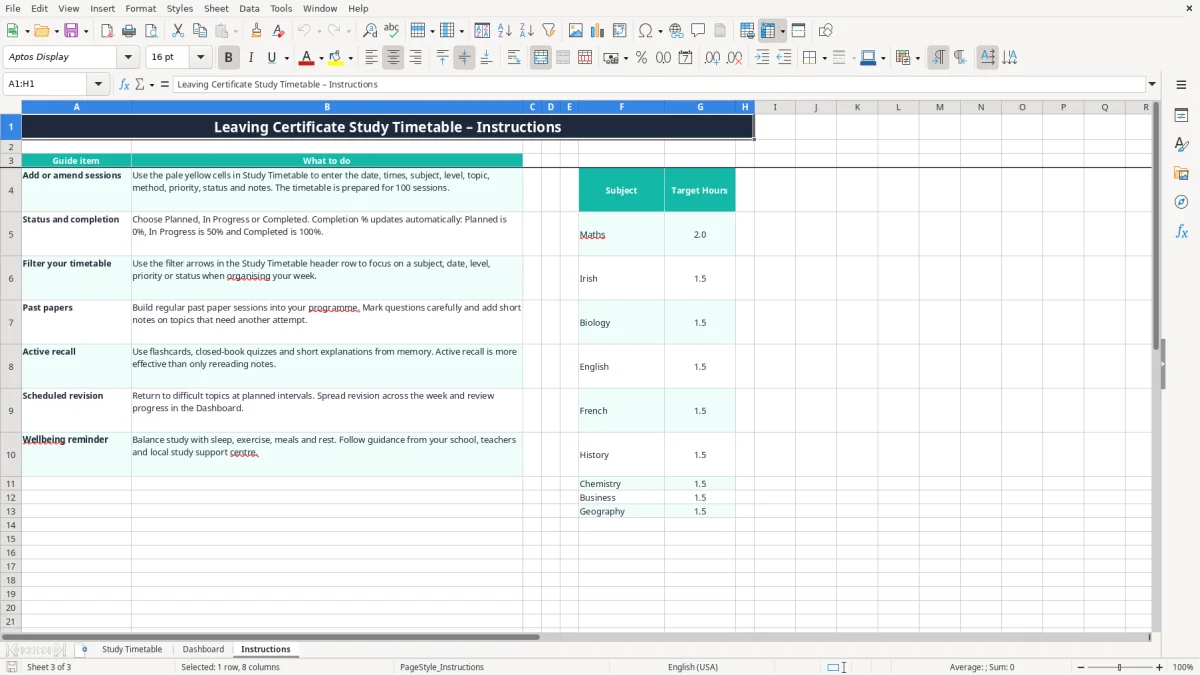
There are three sheets: Study Timetable, Dashboard and Instructions. Image 1 shows the timetable layout, image 2 shows the progress dashboard, and image 3 shows the subject targets and practical guidance.
A Leaving Certificate student usually needs more than a list of subjects. The difficult part is deciding what to study on Monday evening, how long to spend on it and whether a topic should be revisited before the next school test. This workbook suits a student planning independently, a parent helping with weekly structure or a teacher supporting a revision group in an Irish secondary school.
A student in Cork might have football training on Tuesday and Thursday, grinds on Wednesday and a free Saturday morning. Instead of writing a vague instruction such as revise Biology, they can enter 14/09/2026 from 17:00 to 18:30, select Biology, add Genetics and inheritance, choose Flashcards and mark the priority Medium. The formula records a 1.5-hour session.
The sample timetable already demonstrates this type of entry. Image 1 shows the Date, Start Time, End Time, Subject, Level, Topic / Chapter and Study Method fields, with examples for Maths, Irish and Biology. The populated rows are examples; the remaining prepared rows are available for your own plan.
Suppose a student has entered 20 sessions: 8 for Maths, 5 for English and 7 across the sciences. The Dashboard can show the number of sessions, total hours and average completion for each subject, rather than relying on memory. If five sessions are completed and three remain in progress, the status summary gives an immediate view of the workload still open.
The subject target list starts with 2 hours for Maths and 1.5 hours for Irish, Biology, English, French, History, Chemistry, Business and Geography. That makes the workbook useful for a realistic weekly plan, but the target figures are workbook settings, not a Department of Education requirement. Image 2 shows how the Dashboard turns the entries into a progress overview.
This is a planning workbook rather than an official examination document. Leaving Certificate examinations, subject specifications and school assessment dates should be checked against the current information supplied by the State Examinations Commission and the student's school. The spreadsheet does not calculate grades, predicted points or examination results.
When Start Time is 16:30 and End Time is 18:00, the Duration (Hours) formula returns 1.5. It uses the Excel calculation =(D2-C2)*24 through the workbook's formula structure, and leaves the result blank when either time is missing.
Target Hours are linked to the subject table on Instructions. Maths has a target of 2 hours, while Irish and the other listed subjects have targets of 1.5 hours. The lookup uses VLOOKUP, so the subject name selected in the timetable must match the subject list. Do not type a new spelling such as English Language if English is the available list entry.
The workbook assigns Planned a completion value of 0%, In Progress 50% and Completed 100%. This is a clear convention for reviewing a study plan, not a measure of how much of a syllabus a student genuinely understands. A completed 90-minute past-paper session may still reveal several weak areas, so use the Notes column to record what needs another attempt.
Image 3 shows the Instructions sheet, including advice to build in past papers, use active recall and spread revision across the week. It also reminds the student to balance study with sleep, exercise, meals and rest. The workbook contains no automatic date countdown to the examinations, so enter the dates and sessions you actually intend to follow.
The first failure I see in study plans is overloading every evening. A student may enter four two-hour sessions after school, then discover that travel, dinner and homework leave only 45 minutes. The timetable will calculate 8 planned hours accurately, but it cannot make those hours realistic. I prefer four 90-minute sessions that can actually be completed over a plan promising 12 hours and producing none.
Another problem is recording the subject but not the Topic / Chapter. Ten entries labelled Maths provide little help at the end of the month. Ten entries such as algebra and functions, trigonometry and probability show where the time went and make it easier to plan the next revision block.
A student might schedule six sessions for Chemistry, mark all six Completed and still have no notes about mistakes in calculations or definitions. The Dashboard will report 100% completion for those rows because that is exactly how the status formula works. It does not test answers or award marks, so treating the percentage as exam readiness can give false confidence.
Typing 18:00 as 08:00 can produce an incorrect duration or an unusable schedule. A missing end time leaves the duration blank, which reduces the total shown by the Dashboard. Likewise, changing a subject name outside the validation list can prevent the target-hour lookup from returning the expected figure.
There is also a practical cost to ignoring low-priority work. If 12 sessions are entered and eight are marked High, the priority flag stops being useful. I recommend reserving High for topics tied to an upcoming test, a repeated past-paper weakness or a chapter the student has not yet mastered.
The workbook works best when updating it takes five minutes, not when it becomes another homework assignment. Set aside a fixed time on Sunday evening to enter the next week's dates and times, then spend two minutes after each session changing the status and adding one useful note.
If Monday contains Maths from 16:30 to 18:00 and Irish from 19:00 to 20:30, update both that night. The Dashboard then shows 3 planned hours and, if one session is completed, a clear difference between work done and work remaining.
Use the filter arrows in the Study Timetable header to review one subject or status at a time. The sheet is prepared for 100 sessions, which is ample for many individual revision plans. Once several students, multiple family members or hundreds of sessions are being managed, a dedicated education platform is usually more suitable than extending this workbook.
Keep the formula columns intact and make changes in the intended input fields. The strongest routine is simple: plan on Sunday, record immediately after studying, review the Dashboard on Friday and carry unfinished topics forward with a specific next action.

 Excel template built and verified by Ciara Byrne, Chartered Accountant (ACA) · builds the Excel templates.